
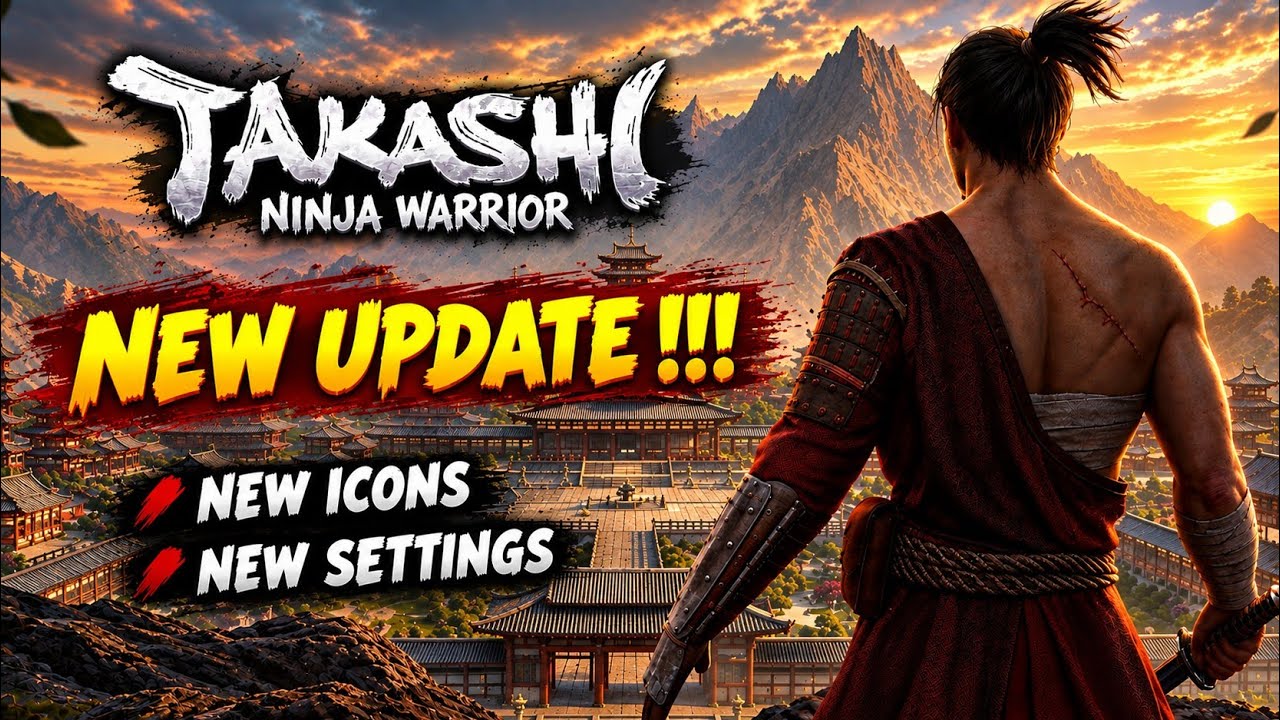
To optimize Takashi Ninja Warrior after the update, set your graphical toggles to prioritize framerate stability, calibrate camera swipe sensitivity to track flanking enemies, and learn the redesigned icon outlines before entering combat encounters.
Recommended Graphics Settings
Maintaining a steady framerate ensures reliable input response for timing-critical dodges and parries. Instead of relying on global graphic presets, adjust the individual settings toggles to balance visual clarity against hardware load.
| Setting | Recommended Value | Impact on Gameplay Performance |
|---|---|---|
| Graphics Quality | Medium | Retains character model clarity while preserving rendering speed. |
| Shadow Resolution | Low or Off | Delivers the largest drop in GPU overhead in open areas. |
| Particle Effects | Medium | Keeps enemy strike telegraphs visible without causing frame dips. |
| Frame Rate Cap | Maximum Supported | Minimizes input latency for dodging and countering. |
Disabling or lowering shadow resolution provides the greatest performance boost without sacrificing tactical visual clarity. If thermal throttling or stuttering occurs during heavy action, lower the graphics quality to keep the framerate locked.
Calibrating Camera Sensitivity
The updated settings menu provides finer control over horizontal and vertical camera panning. Setting swipe sensitivity too low prevents you from reacting to fast-moving flankers, while setting it too high makes precision targeting erratic.
Use a quiet courtyard or clear area to calibrate your swipe responsiveness:
- Center the camera on a distinct environmental point, such as a lantern or doorway.
- Make one standard, comfortable swipe across the right side of the screen.
- Check the camera turn: the view should rotate approximately 180 degrees on a single swipe.
- Increase horizontal sensitivity if checking your rear requires multiple swipes, or decrease it if the view regularly overshoots targets.
- Set vertical sensitivity slightly lower than horizontal sensitivity to prevent unwanted ground or sky tilting during horizontal sweeps.
Reading the Updated Interface and Icons
The visual update replaces textured user interface elements with high-contrast, minimalist silhouettes. These revisions make action readiness readable through peripheral vision during fast movement:
- Combat Actions: The primary attack button, dodge dash icon, and quick-access healing potion button feature prominent high-contrast outlines that indicate availability at a glance.
- Meters and Status Gauges: Status bars and skill meters on the screen edges use updated fill animations that display remaining energy reserves without requiring you to look away from enemy attacks.
- Tabbed Inventory: Weapon selection, armor pieces, throwing items, and talismans are organized into distinct tabbed categories marked by the new icon set. This separation removes clutter when switching between crowd-clearing weapons and single-target armor-piercing blades.
Post-Update Troubleshooting
If inputs feel delayed or custom options do not persist after the update:
- Restart the game client: Close and restart the app immediately after saving new graphics or control options to force the game to write your changes to local storage.
- Clear cache files: If framerates hitch despite lowering shadow settings, clear the application cache through your device system settings without deleting your save data.
- Verify touch targets: Enter the training ground to ensure your touch inputs align accurately with the positions of the redesigned skill and item buttons.
Free Takashi Ninja Warrior Codes
Current active codes and how to redeem them.

Michael Smith
Michael covers live-service games, events, reward systems, and efficient daily routines, turning frequent updates into clear actions for players.
COMMUNITY
Player Comments
79 players commented on this guide.
This guide answered the exact question I had.
Nice guide. I am checking the other Takashi Ninja Warrior articles next.
The explanation is clear, especially for beginners.
Good guide for Takashi Ninja Warrior players. The updates part was useful.