

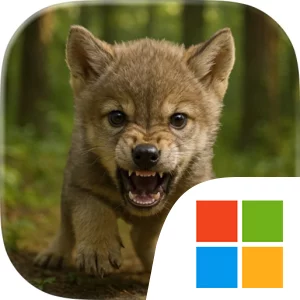
Play The Wolf: Animal Game MMORPG on Windows PC
Download the official The Wolf: Animal Game MMORPG Windows PC client and learn how to install and play the game on PC, with controls, system requirements, and practical tips.

Download The Wolf: Animal Game MMORPG Official Windows PC Client
Official Windows PC client provided by LDPlayer.
About the Official The Wolf: Animal Game MMORPG PC Client
Developer: RAGE QUIT GAMES GROUP SP Z O O SPOŁKA KOMANDYTOWA
The main activities are divided between cooperative hunting and player-versus-player competition. In Hunting mode, you explore the map while searching for prey that ranges from rats and rabbits to does, foxes, racoons, bisons, and bulls. The variety of targets gives exploration a practical purpose: the wilderness is not simply a backdrop, but the place where you track down animals and test the abilities you have developed. Stronger opponents can be approached with other players, making teamwork an important part of the cooperative experience. If you want direct competition instead, Battle Arena places your wolf with other wolves against a rival pack in a team-based PVP match. Both modes take place in online real time, so the presence of players from around the world changes the experience from a solitary simulator into a social pack game. Friends lists, chat options, and the ability to create your own team support that social side, whether you are arranging a hunt with friends and family or communicating before competing in the arena. Playing The Wolf: Animal Game MMORPG on PC also gives these systems more room to manage. A larger display makes it easier to read the environment while moving from your den toward the mountains and streams, distinguish potential prey across the map, and keep track of nearby wolves during a group hunt or Battle Arena match. Keyboard-and-mouse input is especially useful when you need to move, look around, select targets, and communicate through chat without crowding the screen with touch controls. It also makes repeated exploration and hunting actions more comfortable, while the larger PC view helps you compare the visual differences between unlocked skins and maintain awareness of the realistic animals and other players around you. The result is a multiplayer RPG whose focus stays on exploration, pack cooperation, personal development, and the choice between hunting prey and challenging another team.
Screenshots
How to Download and Install the Official The Wolf: Animal Game MMORPG PC Client
- Download and install the official Windows client distributed by LDPlayer.
- Open the app and sign in with your Google Play account.
- Search for The Wolf: Animal Game MMORPG in the app store.
- Install the game and finish the first-launch download.
- Use the same game login if account sync is available.
Why Play The Wolf: Animal Game MMORPG on PC?
Menus, maps, resources, and combat details are easier to read on a desktop display.
Keyboard and mouse input makes repeated actions and long sessions more comfortable.
Desktop play avoids phone battery drain during longer farming sessions.
Keep guides, codes, and notes open alongside the game on PC.
Controls and Performance
These three settings solve most common issues when playing on PC.
Map navigation, skill use, and repeated resource actions first.
Lower resolution or graphics quality if crowded scenes lose frames.
Link your account before switching devices so progress can be restored safely.
The Wolf: Animal Game MMORPG Official PC Client FAQ
Can I play The Wolf: Animal Game MMORPG on PC?
Yes. Download the official Windows PC client distributed by LDPlayer and play with a larger screen, keyboard, and mouse controls.
Is The Wolf: Animal Game MMORPG better on PC than mobile?
Playing on PC can make longer sessions, detailed menus, and resource management more comfortable, while mobile is still convenient for quick check-ins.
Will my The Wolf: Animal Game MMORPG progress sync on PC?
Progress depends on the sign-in options supported by the game. Use the same linked Google, Facebook, Apple, or game account on both devices.
Why does The Wolf: Animal Game MMORPG lag on PC?
Lag can be caused by limited RAM, demanding graphics settings, outdated client files, or background apps. Lower the graphics settings and keep the PC client up to date.
DOWNLOAD STARTED
Your download is starting
Check your browser Downloads if it does not appear.
Official PC client for Windows, distributed by LDPlayer.
Download again