

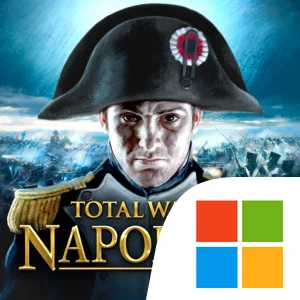
Play Total War™: NAPOLEON on Windows PC
Download the official Total War™: NAPOLEON Windows PC client and learn how to install and play the game on PC, with controls, system requirements, and practical tips.

Download Total War™: NAPOLEON Official Windows PC Client
Official Windows PC client provided by LDPlayer.
About the Official Total War™: NAPOLEON PC Client
Developer: Feral Interactive Ltd
The central loop moves between strategic decisions and direct battlefield command. On the campaign map, your choices determine how you pursue expansion, work with or against other powers, and use the tools available to your faction. When armies meet, you direct thousands of troops in colossal 3D clashes, positioning forces and responding to the changing conditions of battles fought on land and at sea. Historical Battles offer focused objectives and recognizable tests, including Napoleon’s victory over Austria and Russia at Austerlitz, the naval defeats at the Nile and Trafalgar, and the final showdown at Waterloo, where you can fight as Britain or France. These scenarios give the game a clear historical framework while still allowing you to engage with its tactical command systems. The included desktop-game DLC expands the scope with 27 additional units, the Iberian Campaign of the Peninsula War, and the 1807 Battle of Friedland in Prussia.
The Peninsular War provides a distinct campaign emphasis through guerrilla warfare. Playing as Spanish irregulars, you can use guerrilla tactics and rabble-rousing Agents while attempting to liberate Iberia from French occupation. Alternatively, you can take the role of Britain as a steadfast ally. This creates a different kind of military challenge from commanding a conventional imperial campaign: the description specifically highlights irregular forces, tactical resistance, and Agents as tools for the Spanish side. Across the wider game, the combination of campaign planning, faction choice, historical objectives, and real-time combat means that success depends on more than winning a single engagement. You must connect battlefield victories to a larger effort involving rival powers, diplomatic relationships, trade, and covert action.
A larger display is especially useful for the game’s two-level structure. During the strategic phase, more screen space makes it easier to read the campaign situation, assess the position of your forces, compare available choices, and keep your next objective in view while managing the wider conflict. In battles, a larger display helps you follow thousands of troops across the field, distinguish formations amid cannonfire and smoke, and read combat information without losing sight of the action. Keyboard-and-mouse input also suits the repeated precision work involved in selecting units, issuing movement or attack commands, and shifting attention between different parts of a land or sea engagement. It can make planning a campaign, organizing your response to a Coalition army, or handling the many decisions in a Historical Battle feel closer to the familiar desktop experience described by the game. With its campaigns, Historical Battles, playable factions, additional units, and Peninsular War content, Total War™: NAPOLEON is built for players who want to manage a European conflict at the strategic level and then take personal command when the cannonfire begins.
Screenshots
How to Download and Install the Official Total War™: NAPOLEON PC Client
- Download and install the official Windows client distributed by LDPlayer.
- Open the app and sign in with your Google Play account.
- Search for Total War™: NAPOLEON in the app store.
- Install the game and finish the first-launch download.
- Use the same game login if account sync is available.
Why Play Total War™: NAPOLEON on PC?
Menus, maps, resources, and combat details are easier to read on a desktop display.
Keyboard and mouse input makes repeated actions and long sessions more comfortable.
Desktop play avoids phone battery drain during longer farming sessions.
Keep guides, codes, and notes open alongside the game on PC.
Controls and Performance
These three settings solve most common issues when playing on PC.
Map navigation, skill use, and repeated resource actions first.
Lower resolution or graphics quality if crowded scenes lose frames.
Link your account before switching devices so progress can be restored safely.
Total War™: NAPOLEON Official PC Client FAQ
Can I play Total War™: NAPOLEON on PC?
Yes. Download the official Windows PC client distributed by LDPlayer and play with a larger screen, keyboard, and mouse controls.
Is Total War™: NAPOLEON better on PC than mobile?
Playing on PC can make longer sessions, detailed menus, and resource management more comfortable, while mobile is still convenient for quick check-ins.
Will my Total War™: NAPOLEON progress sync on PC?
Progress depends on the sign-in options supported by the game. Use the same linked Google, Facebook, Apple, or game account on both devices.
Why does Total War™: NAPOLEON lag on PC?
Lag can be caused by limited RAM, demanding graphics settings, outdated client files, or background apps. Lower the graphics settings and keep the PC client up to date.
DOWNLOAD STARTED
Your download is starting
Check your browser Downloads if it does not appear.
Official PC client for Windows, distributed by LDPlayer.
Download again