
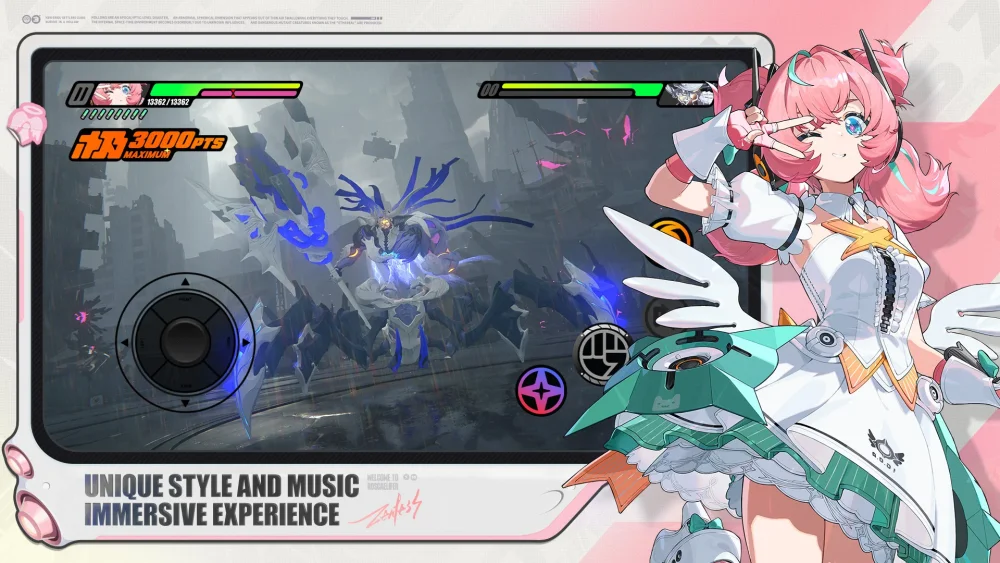
To link your Zenless Zone Zero account to Discord, authorize your HoYoverse account directly inside Discord's connection settings. Connecting the accounts enables Discord to broadcast your live game activity and session time on your user profile whenever you run the game.
Linking HoYoverse to Discord Step-by-Step
You can complete the link using either the Discord desktop client or the mobile application. Ensure you have the login credentials for the HoYoverse account associated with your active game server before starting.
- Open User Settings: In Discord, select the gear icon next to your avatar to open User Settings.
- Access Connections: Select the Connections tab from the left-hand menu.
- Select HoYoverse: Click View More to expand the list of supported integrations, then choose HoYoverse. This opens an external authorization window in your default browser.
- Sign In: Enter the credentials (email, username, or third-party login such as Google or Apple ID) tied to your Zenless Zone Zero profile.
- Authorize Permissions: Review the requested account data access, approve the permissions, and wait for the confirmation prompt to redirect back to Discord.
- Verify the Integration: Check your Discord Connections list to confirm the HoYoverse entry appears.
Once authorized, Discord's Rich Presence automatically updates your status card with official game art and session duration when you launch Zenless Zone Zero through the standalone client, HoYoPlay launcher, or mobile client.
Managing Privacy and Visibility Toggles
Discord provides two independent toggles under the HoYoverse entry in User Settings > Connections to control what other players see:
- Display on profile: Shows the linked HoYoverse account badge on your Discord mini-profile and full profile card. Disabling this hides the public badge while maintaining the backend link.
- Display details on status: Broadcasts your current game session and elapsed time in mutual servers and friend lists. Disabling this stops live status broadcasts while preserving the account connection.
Neither setting grants Discord access to billing details or sensitive account credentials; the link is restricted to reading public account identifiers and active session data.
Troubleshooting Connection and Status Errors
If your Zenless Zone Zero activity does not appear on Discord after completing authorization, check these settings in order:
- Check Discord Activity Privacy: Go to User Settings > Activity Privacy and confirm that Display current activity as a status message is enabled. If this master setting is turned off, Discord will not display game activity regardless of your connection settings.
- Match Server Regions: Ensure the HoYoverse account credentials you entered match the specific regional server (America, Europe, Asia, or TW/HK/MO) where your active save file resides. Authorizing an alternate or empty account will result in blank profile information.
- Close Conflicting Overlays: If you run background game recording utilities, Steam overlays, or graphics dashboard hooks alongside the HoYoPlay launcher, shut down secondary overlays to allow Discord to detect the game process properly.
- Refresh Expired Tokens: Authorization tokens can desync after major patches or password updates. To resolve a desync, select the X beside HoYoverse in your Discord Connections menu to remove it, then complete the authorization steps again.
Free Zenless Zone Zero Codes
Current active codes and how to redeem them.

Emily Johnson
Emily writes practical mobile strategy guides with a focus on resource planning, base progression, and the early decisions that shape a long-term account.
COMMUNITY
Player Comments
76 players commented on this guide.
I tried this today and it worked better than my old setup.
This guide answered the exact question I had.
Can you add more details about strategy in a future update?
The tips are practical and easy to follow.