
Play Call of Dragons on Windows PC
Download the official Call of Dragons Windows PC client and learn how to install and play the game on PC, with controls, system requirements, and practical tips.

Download Call of Dragons Official Windows PC Client
Official Windows PC client provided by LDPlayer.
About the Official Call of Dragons PC Client
Developer: Farlight Games
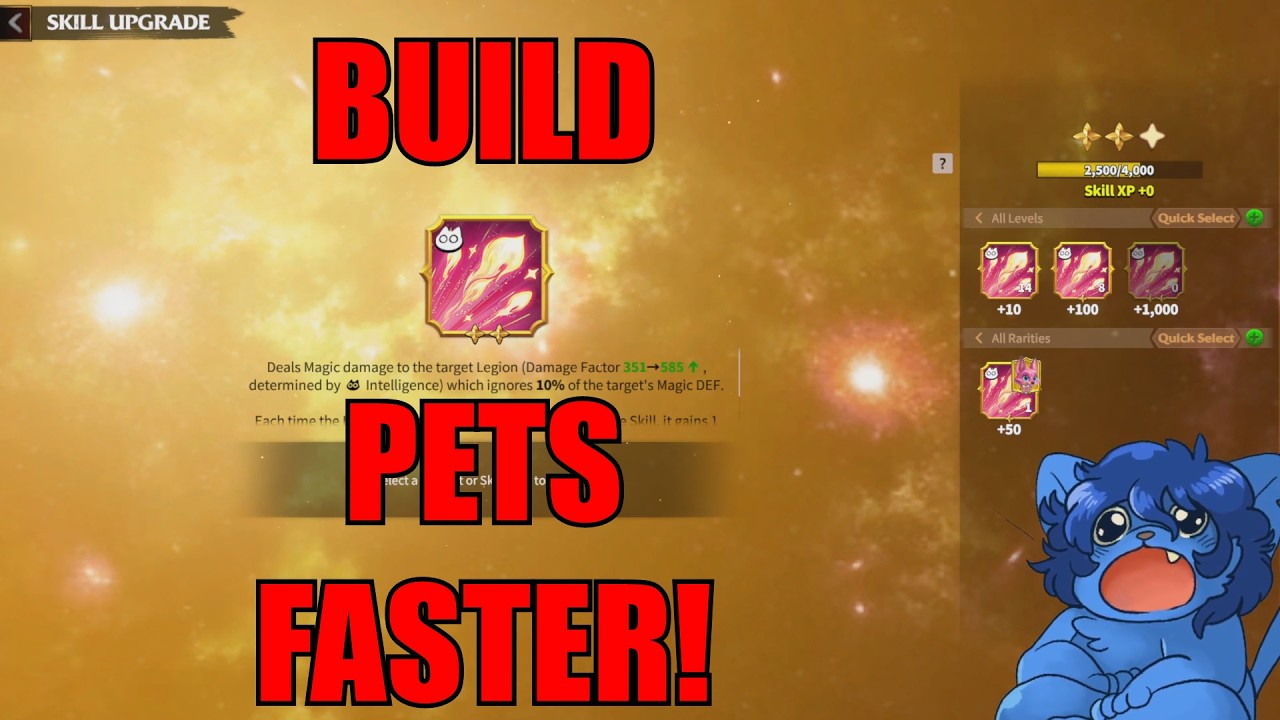
The game’s central loop combines long-term preparation with active battlefield decisions. You recruit heroes from Tamaris’s many fantastic races, including Elves, Orcs, Satyrs, Treants, Forest Eagles, and Celestials, then assign them to lead your forces and develop their powerful abilities. Hero skills can turn a fight at a critical moment: a commander may become invisible, charge across the battlefield in an instant, or unleash a devastating area-of-effect attack. Your armies also gain a major companion system through War Pets. You can capture and purify creatures such as Bears, Lizards, Rocs, and Faedrakes, bring them under your command, and deploy them beside your fantasy armies. Training involves interacting with a pet to increase its Affection Level, feeding it, regenerating it, and inheriting Skills to strengthen its contribution in battle. The same progression-minded approach applies to Behemoths. Working with allies, you hunt and tame gigantic creatures such as Hydras, Thunder Rocs, and Dragons, then summon them during combat as powerful weapons. Because wounded units heal automatically without consuming resources, the game lets you continue waging war and challenging other players without having to spend stockpiles simply to restore damaged forces. On PC, the larger display makes the strategic layer easier to read: you can keep more of Tamaris’s terrain, army positions, and movement routes visible while planning a crossing over a river or directing flying legions around mountains. Keyboard-and-mouse control is also useful when assigning heroes, selecting formations or forces, and activating a precise skill during a crowded battle, while the extra screen space helps when comparing War Pet training choices, following Affection Level and Skills, or balancing building upgrades, technologies, troop training, and resource gathering. The result is a strategy experience where kingdom development, collection, cooperation, and tactical timing all feed into the next campaign decision.
Screenshots
How to Download and Install the Official Call of Dragons PC Client
- Download and install the official Windows client distributed by LDPlayer.
- Open the app and sign in with your Google Play account.
- Search for Call of Dragons in the app store.
- Install the game and finish the first-launch download.
- Use the same game login if account sync is available.
Why Play Call of Dragons on PC?
Menus, maps, resources, and combat details are easier to read on a desktop display.
Keyboard and mouse input makes repeated actions and long sessions more comfortable.
Desktop play avoids phone battery drain during longer farming sessions.
Keep guides, codes, and notes open alongside the game on PC.
Controls and Performance
These three settings solve most common issues when playing on PC.
Map navigation, skill use, and repeated resource actions first.
Lower resolution or graphics quality if crowded scenes lose frames.
Link your account before switching devices so progress can be restored safely.
Call of Dragons Official PC Client FAQ
Can I play Call of Dragons on PC?
Yes. Download the official Windows PC client distributed by LDPlayer and play with a larger screen, keyboard, and mouse controls.
Is Call of Dragons better on PC than mobile?
Playing on PC can make longer sessions, detailed menus, and resource management more comfortable, while mobile is still convenient for quick check-ins.
Will my Call of Dragons progress sync on PC?
Progress depends on the sign-in options supported by the game. Use the same linked Google, Facebook, Apple, or game account on both devices.
Why does Call of Dragons lag on PC?
Lag can be caused by limited RAM, demanding graphics settings, outdated client files, or background apps. Lower the graphics settings and keep the PC client up to date.
DOWNLOAD STARTED
Your download is starting
Check your browser Downloads if it does not appear.
Official PC client for Windows, distributed by LDPlayer.
Download again