

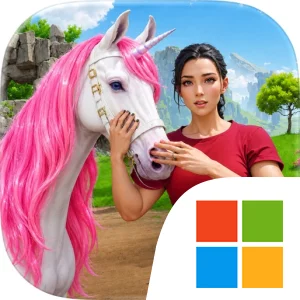
Play Fantasy Unicorn Ranch on Windows PC
Download the official Fantasy Unicorn Ranch Windows PC client and learn how to install and play the game on PC, with controls, system requirements, and practical tips.

Download Fantasy Unicorn Ranch Official Windows PC Client
Official Windows PC client provided by LDPlayer.
About the Official Fantasy Unicorn Ranch PC Client
Developer: Game Boy Studio
The central gameplay loop revolves around caring for your unicorns and using that care to build a larger, more varied herd. Feed your animals to keep up with their daily needs, groom them as part of their ongoing care, and train your unicorn family as you develop your ranch. These activities provide the hands-on routine at the heart of the game: return to your ranch, tend to the creatures in your stable, complete ranch care activities, and collect the rewards that help you continue expanding your magical kingdom. The process is designed to feel steady rather than punishing, with each activity contributing to the broader goal of creating the ultimate fantasy paradise.
Breeding gives the ranch a collection-focused layer. You can breed adorable unicorn foals, raise them as they grow, and work toward unlocking rare magical horses. The available unicorn breeds and colors give you reasons to keep developing your herd, while unique unicorns with mystical abilities add variety to the creatures you discover. The store description does not define a detailed genetics system or specific ability list, so the appeal is best understood as discovering and collecting different magical horses rather than optimizing an unlisted set of breeding statistics. Expanding your stable and growing your magical unicorn herd are connected goals: caring for the animals supports the ranch, and a larger ranch gives you room to pursue more of the game’s collection and breeding possibilities.
Exploration complements the management routine by taking you beyond the stable and into the game’s fantasy landscapes. Moving through enchanting forests and sparkling meadows lets you experience the colorful world surrounding your ranch and discover new surprises, challenges, and opportunities to expand your kingdom. On PC, a larger display can make these environments easier to read at a glance, helping you follow your surroundings while exploring and spot visual details across a bright 3D landscape. Keyboard-and-mouse input can also make movement and camera handling feel more deliberate when you are moving between ranch areas and exploration spaces, especially during repeated trips to care for unicorns or complete activities.
The PC format is also well suited to the game’s many small management decisions. A larger screen gives you more room to view your stable, keep track of the unicorns you are caring for, and compare the different breeds and colors you have unlocked without everything feeling crowded. Mouse input can help with selecting a specific unicorn, choosing a feeding, grooming, or training activity, and handling repeated ranch tasks, while the keyboard offers a convenient way to move through the colorful world and return to familiar actions. Those advantages do not change the gentle nature of Fantasy Unicorn Ranch, but they can make its care-and-expansion loop more comfortable over longer sessions. If you want a calm fantasy experience built around raising magical creatures, exploring colorful environments, collecting unicorns, and steadily shaping your own ranch, this PC version presents that complete caretaker role in a clear, accessible format.
Screenshots
How to Download and Install the Official Fantasy Unicorn Ranch PC Client
- Download and install the official Windows client distributed by LDPlayer.
- Open the app and sign in with your Google Play account.
- Search for Fantasy Unicorn Ranch in the app store.
- Install the game and finish the first-launch download.
- Use the same game login if account sync is available.
Why Play Fantasy Unicorn Ranch on PC?
Menus, maps, resources, and combat details are easier to read on a desktop display.
Keyboard and mouse input makes repeated actions and long sessions more comfortable.
Desktop play avoids phone battery drain during longer farming sessions.
Keep guides, codes, and notes open alongside the game on PC.
Controls and Performance
These three settings solve most common issues when playing on PC.
Map navigation, skill use, and repeated resource actions first.
Lower resolution or graphics quality if crowded scenes lose frames.
Link your account before switching devices so progress can be restored safely.
Fantasy Unicorn Ranch Official PC Client FAQ
Can I play Fantasy Unicorn Ranch on PC?
Yes. Download the official Windows PC client distributed by LDPlayer and play with a larger screen, keyboard, and mouse controls.
Is Fantasy Unicorn Ranch better on PC than mobile?
Playing on PC can make longer sessions, detailed menus, and resource management more comfortable, while mobile is still convenient for quick check-ins.
Will my Fantasy Unicorn Ranch progress sync on PC?
Progress depends on the sign-in options supported by the game. Use the same linked Google, Facebook, Apple, or game account on both devices.
Why does Fantasy Unicorn Ranch lag on PC?
Lag can be caused by limited RAM, demanding graphics settings, outdated client files, or background apps. Lower the graphics settings and keep the PC client up to date.
DOWNLOAD STARTED
Your download is starting
Check your browser Downloads if it does not appear.
Official PC client for Windows, distributed by LDPlayer.
Download again