
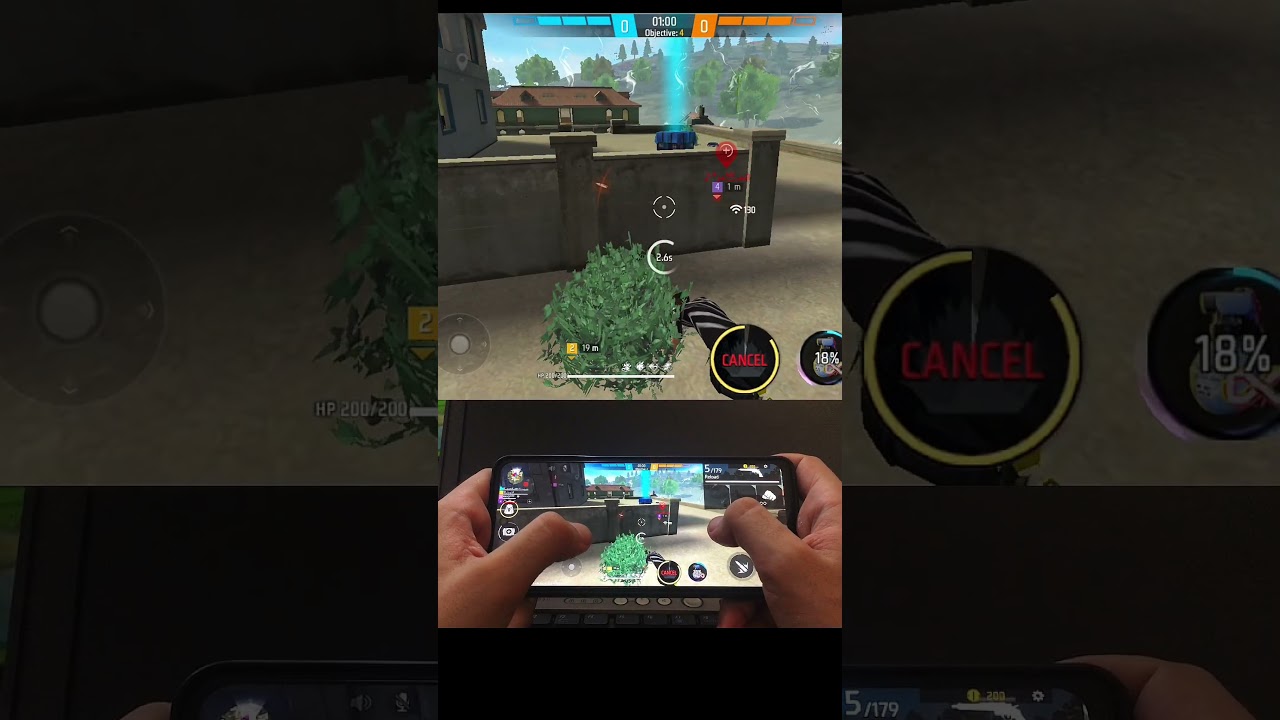
To consistently land drag headshots on a Samsung Galaxy device in Free Fire, set your General sensitivity to 96–100, reduce your right fire button size to 45–52%, and place it low on your screen. This combination lowers swipe resistance, breaks the game's default chest-level auto-aim lock, and provides enough screen space for quick upward thumb flicks.
---
Recommended In-Game Sensitivity Values
Free Fire's auto-aim naturally targets an opponent's torso. To drag the crosshair upward to the helmet, high general sensitivity is required. Lower scoped values are needed to keep ranged crosshairs from jumping past the target.
| Setting | Recommended Range | Combat Role |
|---|---|---|
| General | 96–100 | Hip-fire camera speed and upward drag acceleration |
| Red Dot | 90–95 | Non-scoped tracking and close-range micro-adjustments |
| 2x Scope | 84–88 | Mid-range assault rifle drag stability |
| 4x Scope | 76–82 | Long-range burst stability without reticle wobble |
| Sniper Scope | 48–55 | Controlled leading on bolt-action sniper rifles |
| Free Look | 65–72 | Peripheral view and 360-degree situational awareness |
Note: If General sensitivity is set below 90 on a Samsung phone, the crosshair frequently fails to break the torso aim-lock during rapid swipes.
---
Custom HUD Fire Button Setup
Your fire button's size and position determine the physical travel space available for upward drags.
- Button Size (45–52%): A button larger than 55% consumes too much vertical display room. Sizing it between 45% and 52% prevents accidental misclicks while maximizing upward flick distance.
- Button Placement: Position the button in the lower-right area of the HUD, slightly below your thumb's natural resting spot.
- Swipe Clearance: Placing the button low creates a longer physical "runway." This runway allows your thumb to accelerate upward without running out of screen space at the top bezel.
---
Samsung One UI System Adjustments
System-level display settings on Samsung phones directly affect touch response latency and pointer velocity. Adjust the following device settings before launching the game:
- Enable Touch Sensitivity: Open Settings > Display and turn on Touch Sensitivity. This increases touch digitizer registration, reducing input lag during quick flicks.
- Maximize Pointer Speed: Navigate to Settings > General Management > Mouse and Trackpad, then move the Pointer Speed slider to maximum to accelerate swipe registration.
- Calibrate Minimum Width (DPI): In Developer Options, locate Minimum Width. If the default is 384 or 411, increase it moderately to 440–480. This compresses the screen grid, letting a shorter thumb flick cover more in-game distance. Do not set this above 500, as extreme values can crash Samsung One UI or misalign HUD tap targets.
---
Drag Headshot Execution
Proper settings must be paired with correct crosshair placement to consistently secure headshots:
- Starting Position: Keep your white crosshair at collarbone level or slightly to the side of the enemy before firing. Never let the idle reticle rest on the enemy's stomach.
- Point-Blank Range (Shotguns/SMGs): Use a curved "J-drag." Pull the fire button slightly down, then flick it sharply upward toward the head in one fluid motion.
- Mid-Range (Assault Rifles): Apply a steady, straight upward drag. Allow the auto-aim to register the initial hit, then pull smoothly to guide subsequent rounds into the head.
- Moving Targets: Pull the fire button diagonally along the enemy's movement vector rather than straight up.
- Long-Distance Scoped Fire: Avoid holding continuous automatic fire. Fire three- to four-round bursts while lightly pulling down on the screen to control weapon bloom, resetting the reticle between bursts.

Free Free Fire Codes
Current active codes and how to redeem them.

James Brown
James focuses on Android gaming on PC, emulator setup, controls, performance tuning, and practical troubleshooting for longer play sessions.
COMMUNITY
Player Comments
47 players commented on this guide.
This guide answered the exact question I had.
I tried this today and it worked better than my old setup.
The tips are practical and easy to follow.
The explanation is clear, especially for beginners.