
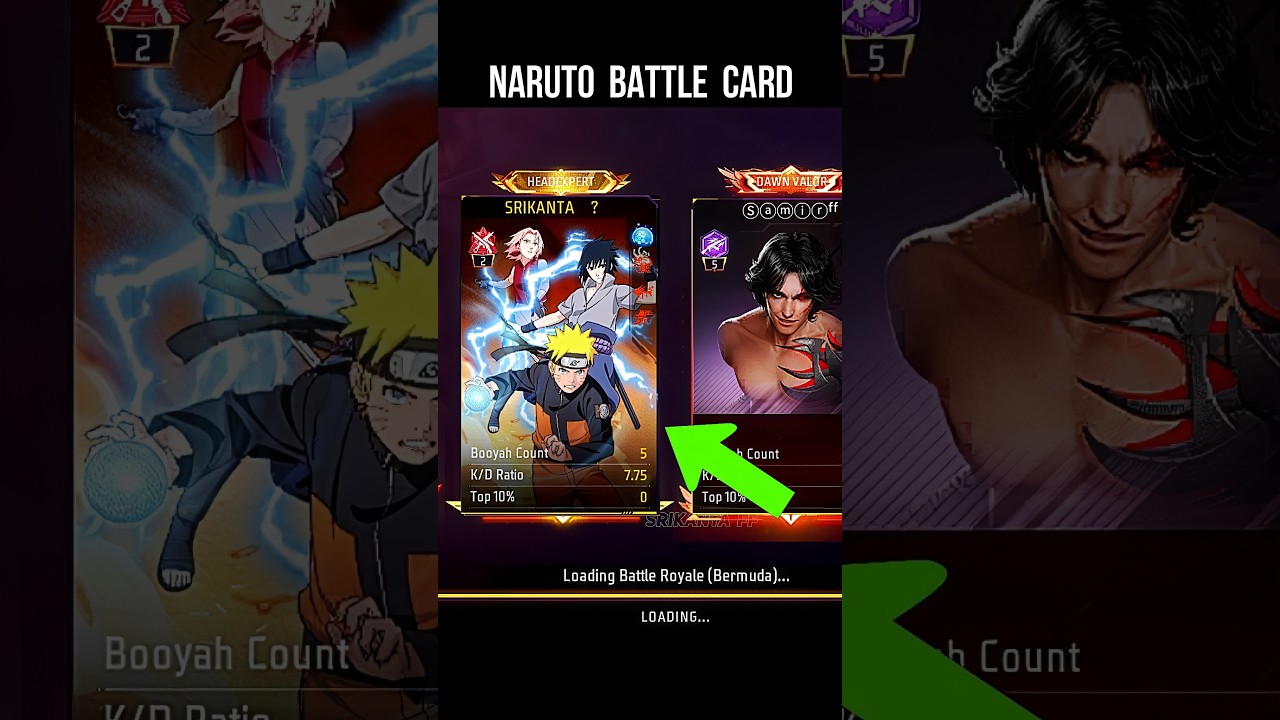
To unlock and customize the Naruto Shippuden Battle Card in Free Fire, you must earn the themed cosmetic pieces through the limited-time crossover event hub and equip them in your player profile menu. The Battle Card acts as your pre-match identity showcase, displaying your character model, cosmetic frames, and chosen combat statistics to teammates and opponents during loading screens.
How to Unlock the Naruto Battle Card Components
The Naruto Battle Card is not sold in the standard armory shop. You must claim its pieces by participating in the collaboration event tabs before the crossover ends.
- Open the Event Hub: From the main lobby, tap the Naruto collaboration icon on the right side of the screen.
- Complete Daily Event Missions: Play matches in Battle Royale or Clash Squad, survive for specified durations, or secure eliminations to collect event tokens.
- Redeem Components in the Event Store: Exchange your gathered tokens for the Naruto Shippuden card background, themed border, and associated title plates.
- Collect Your Rewards: Check your inventory vault after redemption. If your server routes milestone rewards through mail, claim them from your in-game mailbox before the thirty-day expiration window.
Because collaboration items depend on limited licensing windows, unlock these card components before the event concludes to avoid losing access permanently.
How to Equip and Customize Your Battle Card
Once you have claimed the Naruto background and frame, equip them through the profile interface to show them in pre-match lobbies.
- Tap your player avatar in the top-left corner of the main lobby.
- Select the Battle Card tab next to your profile overview.
- Tap the edit icon to open the customization drawer.
- Select your preferred background art, border, and character outfit bundle.
- Choose up to three performance tags to highlight your combat record.
- Select Confirm to save the changes to your loading screen profile.
| Customization Slot | Slot Function | Naruto Collaboration Option |
|---|---|---|
| Background Art | Base visual behind your stats and character | Naruto Shippuden crossover art |
| Card Border | Outer edge frame and accent styling | Limited Naruto collaboration animated frame |
| Featured Model | Character pose and equipped outfit | Naruto, Kakashi, or Itachi bundle |
| Badge Display | Progress markers and seasonal emblems | Event badges and Elite Pass emblems |
| Stat Trackers | Displayed combat metrics | Headshot rate, total wins, or MVP count |
Selecting Stat Tags by Game Mode
Your chosen stat tags communicate your primary strengths to squadmates before a match begins. Tailor your three displayed metrics to the mode you play most often:
- Clash Squad (CS and CS-Ranked): Prioritize Headshot Rate, Clash Squad MVP, or your active Win Streak. In close-quarters 4v4 rounds, these numbers show mechanical consistency and fragging ability.
- Battle Royale (BR and BR-Ranked): Focus on Total Kills, Damage Dealt, or Highest Rank Achieved. These stats demonstrate long-range combat efficiency and match-to-match survival consistency. If you play a support role, displaying revival counts or average placement highlights your team utility.
Troubleshooting Missing Visuals and Sync Delays
If your Naruto Battle Card shows a generic gray plate or displays outdated combat statistics, use these steps to resolve the problem:
- Incomplete Asset Downloads: Custom collaboration textures will not display if local game files are missing. Open the Download Center (the cloud icon at the top of the lobby) and verify that the "New Patches" and "Cosmetics & Outfits" resource packs are downloaded to 100%.
- Stat Desynchronization: If recently earned ranked wins or kills do not appear on your card, log out of Free Fire through the basic settings menu, close the application, and log back in. This forces a profile data refresh with the server.
Free Free Fire Codes
Current active codes and how to redeem them.

Michael Smith
Michael covers live-service games, events, reward systems, and efficient daily routines, turning frequent updates into clear actions for players.
COMMUNITY
Player Comments
100 players commented on this guide.
I tried this today and it worked better than my old setup.
I wish I had read this before upgrading the wrong thing.
The tips are practical and easy to follow.
This helped me understand updates much better.