
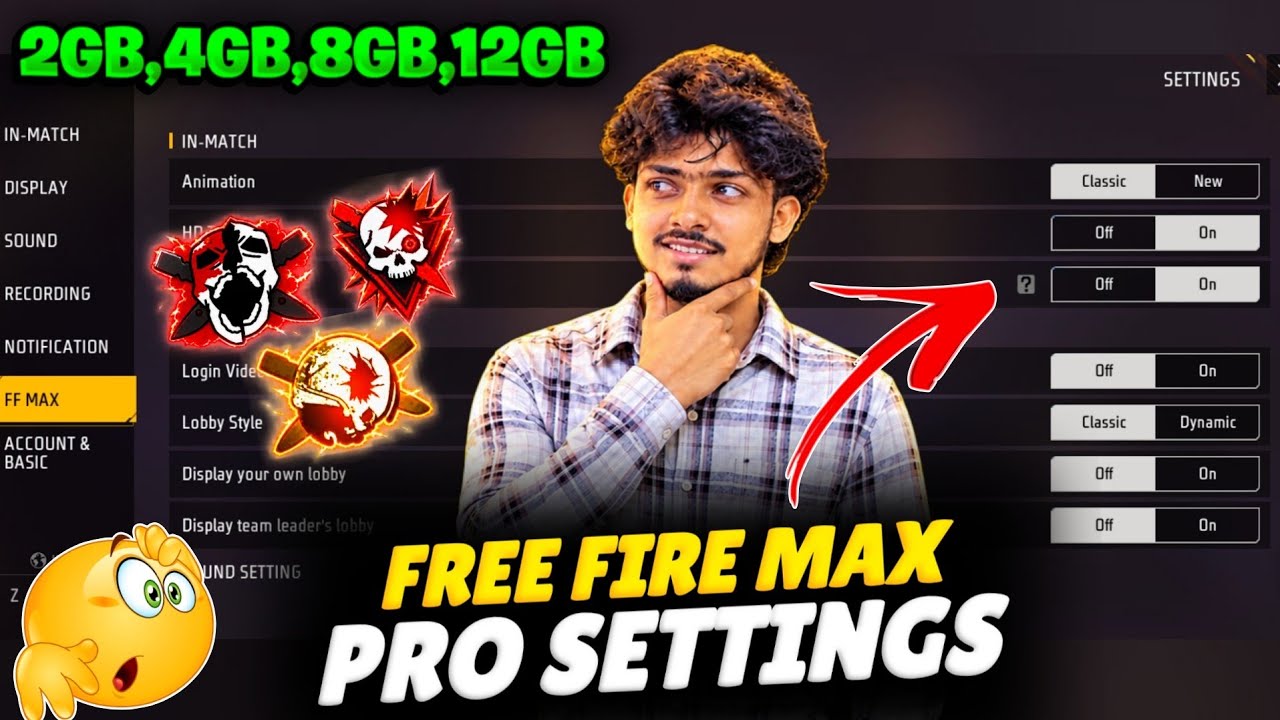
To get the smoothest performance and clearest target visibility in Free Fire, open the in-game Settings menu, go to the dedicated FF MAX tab, and switch graphical and audio options from their high-fidelity defaults to Classic and Off. Disabling heavy textures and complex animations lowers processing demand, minimizes thermal throttling, and removes visual noise that interferes with tracking opponents and landing drag headshots.
Recommended FF MAX Settings Configuration
Free Fire enables several enhanced visual and audio features by default. While these features make the client look more realistic, they consume additional device memory and GPU bandwidth. Toggling them off prioritizes stable frame delivery and responsive input during firefights.
| Setting | Default | Recommended | Competitive Benefit |
|---|---|---|---|
| Login Video | On | Off | Speeds up game launch and lowers initial RAM usage |
| Lobby Style | Dynamic | Classic | Reduces background menu rendering and GPU load |
| Audio Style | New | Classic | Emphasizes footsteps and distinct weapon sounds |
| Animation | New | Classic | Standardizes movement posture for consistent crosshair placement |
| Visual Effects | New | Classic | Minimizes smoke, zone barriers, and particle obstruction |
| HD Texture | On | Off | Prevents texture pop-in and reduces micro-stutters |
| Vehicle Effects | On | Off | Maintains consistent frame rates around driving vehicles |
Why Classic Audio and Animation Improve Combat Awareness
The dedicated FF MAX settings directly alter in-match sound mixing and character models:
- Audio Style (Classic): The New audio profile adds bass reverberation, environmental echo, and distant weapon muffling. While cinematic, this low-end rumble obscures vital positional audio. Classic audio provides sharper, high-frequency sound signatures for enemy footsteps, door interactions, and weapon fire, making it easier to pinpoint approaching players in Clash Squad and Battle Royale.
- Animation (Classic): New animations introduce fluid shoulder sways and weapon bobbing during sprints and transitions. This extra movement causes visual shifts that disrupt crosshair alignment. Classic animation keeps character models rigid and predictable, helping you keep your crosshair level with enemy heads during sprint-to-fire transitions.
- Visual Effects (Classic): Setting visual effects to Classic tones down grenade shockwaves, muzzle smoke, and safe zone boundary glow. Toning down these particles prevents crouching opponents from being hidden by explosion plumes or zone edges.
Managing HD Textures and Thermal Throttling
Leaving HD Texture and Vehicle Effects enabled forces your device to stream uncompressed surfaces for terrain, structures, and character skins. During long sessions or crowded drops in areas like Clock Tower, this continuous data streaming increases device temperature. When mobile hardware overheats, the processor downclocks to protect components, causing sudden frame-rate drops. Turning off HD textures and vehicle particle trails keeps asset streaming lightweight and prevents mid-fight stuttering.
How to Apply and Save Your Settings Profile
Changing core rendering options requires restarting the app to purge cached assets from device memory. Follow these steps to apply and back up your configuration:
- Tap the gear icon in the upper-right corner of the main lobby to enter Settings.
- Select the FF MAX tab from the bottom of the left-hand navigation menu.
- Set Login Video to Off, Lobby Style to Classic, Audio Style to Classic, Animation to Classic, Visual Effects to Classic, HD Texture to Off, and Vehicle Effects to Off.
- Close Free Fire completely using your device's app switcher, then relaunch the game to clear cached high-resolution files.
- Enter the Training Grounds to verify footstep clarity and test crosshair tracking.
- Open Settings, navigate to the Basic tab, and tap Upload under Settings Sync to save your preferences to the cloud.

Free Free Fire Codes
Current active codes and how to redeem them.

Michael Smith
Michael covers live-service games, events, reward systems, and efficient daily routines, turning frequent updates into clear actions for players.
COMMUNITY
Player Comments
103 players commented on this guide.
Good guide for Free Fire players. The strategy part was useful.
The tips are practical and easy to follow.
Can you add more details about strategy in a future update?
I tried this today and it worked better than my old setup.