

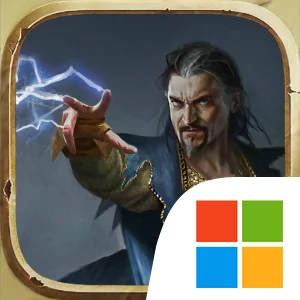
Play GWENT: Rogue Mage on Windows PC
Download the official GWENT: Rogue Mage Windows PC client and learn how to install and play the game on PC, with controls, system requirements, and practical tips.

Download GWENT: Rogue Mage Official Windows PC Client
Official Windows PC client provided by LDPlayer.
About the Official GWENT: Rogue Mage PC Client
Developer: CD PROJEKT S.A.
The core loop combines the immediate puzzle of a GWENT battle with the longer-term considerations of a roguelike deckbuilding game. Every encounter is an opportunity to apply your current cards and strategy, but it also forms part of the wider attempt to help Alzur complete his mission. Deckbuilding is therefore more than a one-time setup: it is central to deciding how your run functions and how you respond to changing strategic demands. Card battles reward careful reading of the information presented, deliberate selection of plays, and an understanding of how individual choices fit into a broader plan. On PC, a larger display is especially useful when reviewing the cards in your deck, reading their effects during a battle, and comparing possible choices before committing to a move. Keyboard-and-mouse input also makes repeated card selection and precise interaction with the battlefield more comfortable, particularly when you are evaluating several options in sequence or revisiting your strategy between encounters. The additional screen space can keep the active battle, card details, and surrounding interface visible at once, which helps when planning a turn instead of relying on quick, imprecise decisions. For players interested in a solo strategy game with a strong fantasy setting, GWENT: Rogue Mage offers a contained story about Alzur and Lily alongside a system-driven challenge built from roguelike structure, deck construction, and the distinctive logic of GWENT card battles. Its appeal comes from balancing the immediate goal of overcoming monsters with the larger task of developing a capable deck and making strategic decisions throughout the quest.
Screenshots
How to Download and Install the Official GWENT: Rogue Mage PC Client
- Download and install the official Windows client distributed by LDPlayer.
- Open the app and sign in with your Google Play account.
- Search for GWENT: Rogue Mage in the app store.
- Install the game and finish the first-launch download.
- Use the same game login if account sync is available.
Why Play GWENT: Rogue Mage on PC?
Menus, maps, resources, and combat details are easier to read on a desktop display.
Keyboard and mouse input makes repeated actions and long sessions more comfortable.
Desktop play avoids phone battery drain during longer farming sessions.
Keep guides, codes, and notes open alongside the game on PC.
Controls and Performance
These three settings solve most common issues when playing on PC.
Map navigation, skill use, and repeated resource actions first.
Lower resolution or graphics quality if crowded scenes lose frames.
Link your account before switching devices so progress can be restored safely.
GWENT: Rogue Mage Official PC Client FAQ
Can I play GWENT: Rogue Mage on PC?
Yes. Download the official Windows PC client distributed by LDPlayer and play with a larger screen, keyboard, and mouse controls.
Is GWENT: Rogue Mage better on PC than mobile?
Playing on PC can make longer sessions, detailed menus, and resource management more comfortable, while mobile is still convenient for quick check-ins.
Will my GWENT: Rogue Mage progress sync on PC?
Progress depends on the sign-in options supported by the game. Use the same linked Google, Facebook, Apple, or game account on both devices.
Why does GWENT: Rogue Mage lag on PC?
Lag can be caused by limited RAM, demanding graphics settings, outdated client files, or background apps. Lower the graphics settings and keep the PC client up to date.
DOWNLOAD STARTED
Your download is starting
Check your browser Downloads if it does not appear.
Official PC client for Windows, distributed by LDPlayer.
Download again