

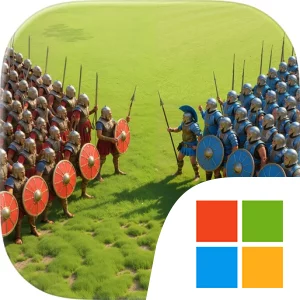
Play Last Fiefdom on Windows PC
Download the official Last Fiefdom Windows PC client and learn how to install and play the game on PC, with controls, system requirements, and practical tips.

Download Last Fiefdom Official Windows PC Client
Official Windows PC client provided by LDPlayer.
About the Official Last Fiefdom PC Client
Developer: Puzala Games Limited
The core loop begins with fortress construction and preparation. You can raise towering citadels and defend them with fireballistas and boiling oil pits, creating layered defenses intended to withstand months-long sieges. At the same time, ancient dragon eggs give you another long-term project: hatch dragons, nurture them, and develop them into firestorm-breathing titans that can incinerate enemy legions. These systems give your military power a strategic foundation, since a successful assault or defense depends on more than simply sending troops forward. You can infiltrate rival courts with spies, sabotage their dragon-feeding grounds, and weaken an opponent before declaring war, turning information and disruption into part of your preparation.
When battles begin, siege strategy determines how your forces make progress. Trebuchets can smash walls and create breaches, after which armored knights can flood through the openings. Research adds further choices, including combat tactics such as night invisibility and phalanx formations, which are designed to shape how you approach PvP battles. The game also expands beyond individual rivalries through global multiplayer alliances and 100v100 castle assaults. In those encounters, coordination matters: allied players must work together to plan attacks, including synchronized dragon flights aimed at melting enemy gates. Alliances therefore function as more than a social feature, since cooperation can influence whether a fortress falls or an assault stalls.
A PC display gives you more room to read the battlefield and keep multiple strategic details in view while planning. During a siege, a larger screen can make it easier to follow the condition of walls, identify breaches, compare the position of trebuchets and armored knights, and judge where defensive structures such as fireballistas or boiling oil pits matter most. Keyboard-and-mouse controls are also well suited to repeated management tasks, such as selecting buildings, organizing forces, checking research options, and moving through the decisions involved in preparing a dragon or coordinating an alliance assault. In a 100v100 battle, precise pointing can help when you need to inspect different parts of a castle or respond to changing attack lanes, while a keyboard can make frequent commands and navigation feel more direct. With fortress management, dragon development, espionage, research, and alliance warfare all competing for attention, Last Fiefdom presents its crown as the result of sustained planning rather than a single victory.
Screenshots
How to Download and Install the Official Last Fiefdom PC Client
- Download and install the official Windows client distributed by LDPlayer.
- Open the app and sign in with your Google Play account.
- Search for Last Fiefdom in the app store.
- Install the game and finish the first-launch download.
- Use the same game login if account sync is available.
Why Play Last Fiefdom on PC?
Menus, maps, resources, and combat details are easier to read on a desktop display.
Keyboard and mouse input makes repeated actions and long sessions more comfortable.
Desktop play avoids phone battery drain during longer farming sessions.
Keep guides, codes, and notes open alongside the game on PC.
Controls and Performance
These three settings solve most common issues when playing on PC.
Map navigation, skill use, and repeated resource actions first.
Lower resolution or graphics quality if crowded scenes lose frames.
Link your account before switching devices so progress can be restored safely.
Last Fiefdom Official PC Client FAQ
Can I play Last Fiefdom on PC?
Yes. Download the official Windows PC client distributed by LDPlayer and play with a larger screen, keyboard, and mouse controls.
Is Last Fiefdom better on PC than mobile?
Playing on PC can make longer sessions, detailed menus, and resource management more comfortable, while mobile is still convenient for quick check-ins.
Will my Last Fiefdom progress sync on PC?
Progress depends on the sign-in options supported by the game. Use the same linked Google, Facebook, Apple, or game account on both devices.
Why does Last Fiefdom lag on PC?
Lag can be caused by limited RAM, demanding graphics settings, outdated client files, or background apps. Lower the graphics settings and keep the PC client up to date.
DOWNLOAD STARTED
Your download is starting
Check your browser Downloads if it does not appear.
Official PC client for Windows, distributed by LDPlayer.
Download again