

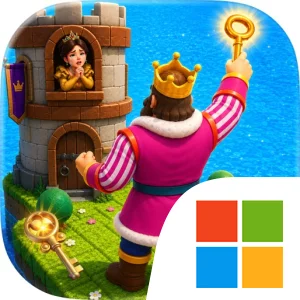
Play Royal King Escape Adventure on Windows PC
Download the official Royal King Escape Adventure Windows PC client and learn how to install and play the game on PC, with controls, system requirements, and practical tips.

Download Royal King Escape Adventure Official Windows PC Client
Official Windows PC client provided by LDPlayer.
About the Official Royal King Escape Adventure PC Client
Developer: Muhammad Ghulam Akbar
The central gameplay loop is built around deliberate movement. You use the left, right, up, and down arrow directions to move across the grid, checking the available paths before committing to the next step. A route that looks convenient may lead into a dead end, and the store description specifically emphasizes that one wrong move can block your way. That makes every level a small exercise in smart path planning: identify where the keys are placed, consider the order in which they can be collected, and work out how to preserve access to the castle. The key collection goals give each layout more structure than simply walking from one side of the grid to the other. You must account for the required objectives while still maintaining a workable path to the final destination.
Progression comes through increasing puzzle difficulty. Royal King Escape Adventure starts with simple levels that introduce its movement and completion rules, then adds new layouts, locked paths, tricky routes, and more demanding key collection challenges. As the levels become more complex, success depends less on quick reactions and more on observing the whole grid before moving. On PC, a larger display can make the arrangement of paths, keys, blocked or locked routes, and the castle easier to inspect at a glance, which is especially useful when a puzzle contains several possible directions. Keyboard arrow keys also suit the game’s precise, step-by-step design: each press can represent one considered move, helping you test a route without relying on imprecise continuous movement. If the directional controls are presented as on-screen buttons, a mouse provides another controlled way to select left, right, up, or down, while the larger screen keeps those buttons and the puzzle area visible together. That combination is helpful when repeatedly retracing a route, checking a key’s position, or correcting a plan after discovering that a path is blocked.
The game’s appeal lies in the gradual refinement of a simple idea. Early stages let you learn how the king moves and how the castle-based completion goal works, while later levels ask you to combine route selection, key collection, and forward planning more carefully. Each completed puzzle is the result of finding the correct path rather than overpowering an obstacle, making observation and patience the main tools of progress. For puzzle fans who enjoy compact objectives and increasingly challenging layouts, the experience offers a focused series of royal grid challenges: guide the king, collect every necessary key, avoid the wrong turn, and reach the castle safely.
Screenshots
How to Download and Install the Official Royal King Escape Adventure PC Client
- Download and install the official Windows client distributed by LDPlayer.
- Open the app and sign in with your Google Play account.
- Search for Royal King Escape Adventure in the app store.
- Install the game and finish the first-launch download.
- Use the same game login if account sync is available.
Why Play Royal King Escape Adventure on PC?
Menus, maps, resources, and combat details are easier to read on a desktop display.
Keyboard and mouse input makes repeated actions and long sessions more comfortable.
Desktop play avoids phone battery drain during longer farming sessions.
Keep guides, codes, and notes open alongside the game on PC.
Controls and Performance
These three settings solve most common issues when playing on PC.
Map navigation, skill use, and repeated resource actions first.
Lower resolution or graphics quality if crowded scenes lose frames.
Link your account before switching devices so progress can be restored safely.
Royal King Escape Adventure Official PC Client FAQ
Can I play Royal King Escape Adventure on PC?
Yes. Download the official Windows PC client distributed by LDPlayer and play with a larger screen, keyboard, and mouse controls.
Is Royal King Escape Adventure better on PC than mobile?
Playing on PC can make longer sessions, detailed menus, and resource management more comfortable, while mobile is still convenient for quick check-ins.
Will my Royal King Escape Adventure progress sync on PC?
Progress depends on the sign-in options supported by the game. Use the same linked Google, Facebook, Apple, or game account on both devices.
Why does Royal King Escape Adventure lag on PC?
Lag can be caused by limited RAM, demanding graphics settings, outdated client files, or background apps. Lower the graphics settings and keep the PC client up to date.
DOWNLOAD STARTED
Your download is starting
Check your browser Downloads if it does not appear.
Official PC client for Windows, distributed by LDPlayer.
Download again