

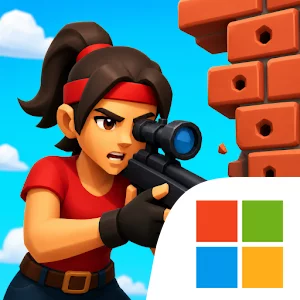
Play Shoot & Hide on Windows PC
Download the official Shoot & Hide Windows PC client and learn how to install and play the game on PC, with controls, system requirements, and practical tips.

Download Shoot & Hide Official Windows PC Client
Official Windows PC client provided by LDPlayer.
About the Official Shoot & Hide PC Client
Developer: CrazyLabs LTD
Progression gives the repeated encounters a reason to continue beyond mastering the immediate timing challenge. As you advance through levels, you can unlock new weapons, gear, and characters, then improve your setup for tougher stages. Weapon and gear upgrades are therefore part of the broader decision-making loop: stronger or better equipment can help you handle increasing difficulty, but success still depends on knowing when to leave cover and when to hide. Character customization adds another layer to the unlock structure, letting your progress shape the tools and appearance available to you as the challenges become more demanding. On PC, the larger display makes the action easier to read at a glance, helping you track enemy reactions, identify the moment an opening appears, and judge when it is safe to step out or retreat. Keyboard-and-mouse input can also make repeated shoot-and-hide actions feel more controlled, especially when a level demands quick movement from cover to attack and back again. A mouse provides direct precision for selecting or aiming at a target, while keyboard input can give your movement and hide commands distinct, easy-to-repeat inputs. That setup is particularly useful when timing windows tighten and a small delay can turn a clean shot into a failed attempt. With its escalating levels, unlockable weapons and gear, customizable characters, and focus on short bursts of concentrated play, Shoot & Hide is suited to players who want a straightforward reflex challenge where every decision has immediate consequences.
Screenshots
How to Download and Install the Official Shoot & Hide PC Client
- Download and install the official Windows client distributed by LDPlayer.
- Open the app and sign in with your Google Play account.
- Search for Shoot & Hide in the app store.
- Install the game and finish the first-launch download.
- Use the same game login if account sync is available.
Why Play Shoot & Hide on PC?
Menus, maps, resources, and combat details are easier to read on a desktop display.
Keyboard and mouse input makes repeated actions and long sessions more comfortable.
Desktop play avoids phone battery drain during longer farming sessions.
Keep guides, codes, and notes open alongside the game on PC.
Controls and Performance
These three settings solve most common issues when playing on PC.
Map navigation, skill use, and repeated resource actions first.
Lower resolution or graphics quality if crowded scenes lose frames.
Link your account before switching devices so progress can be restored safely.
Shoot & Hide Official PC Client FAQ
Can I play Shoot & Hide on PC?
Yes. Download the official Windows PC client distributed by LDPlayer and play with a larger screen, keyboard, and mouse controls.
Is Shoot & Hide better on PC than mobile?
Playing on PC can make longer sessions, detailed menus, and resource management more comfortable, while mobile is still convenient for quick check-ins.
Will my Shoot & Hide progress sync on PC?
Progress depends on the sign-in options supported by the game. Use the same linked Google, Facebook, Apple, or game account on both devices.
Why does Shoot & Hide lag on PC?
Lag can be caused by limited RAM, demanding graphics settings, outdated client files, or background apps. Lower the graphics settings and keep the PC client up to date.
DOWNLOAD STARTED
Your download is starting
Check your browser Downloads if it does not appear.
Official PC client for Windows, distributed by LDPlayer.
Download again