
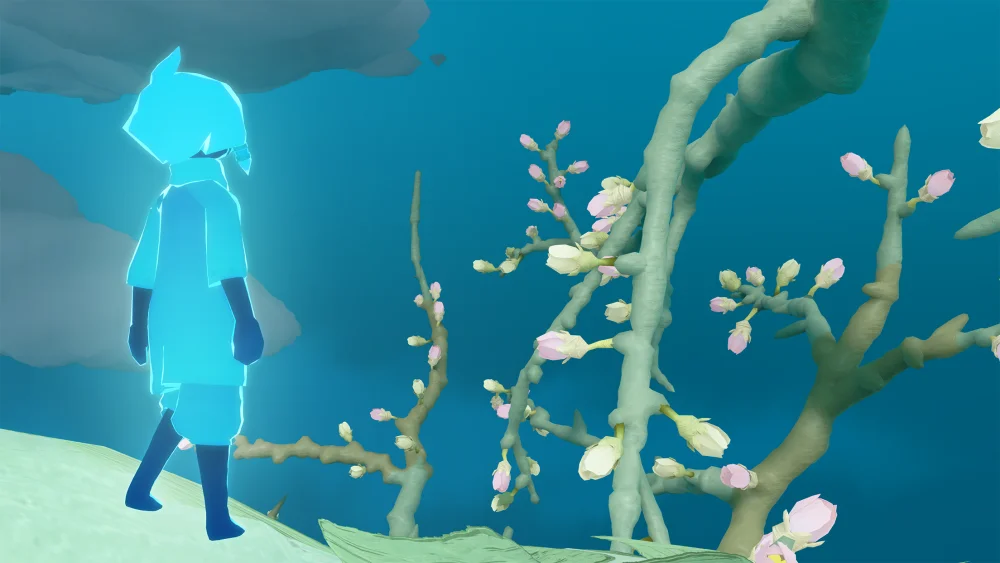
Transitioning from mobile to PC in Sky: Children of the Light is a transformative experience, offering stunning graphical fidelity and a wider field of view. However, the shift from intuitive touch gestures to keyboard-and-mouse or controller inputs requires a tactical adjustment to maintain your efficiency. For veteran players, the goal is to translate muscle memory into the PC’s more structured control scheme while utilizing the platform’s unique visual advantages to master the skies.
Understanding the PC Flight Control Paradigm
Flight is the core mechanic of Sky: Children of the Light, and on PC, it behaves differently than the tap-to-fly mobile experience. Whether you are using a keyboard or a controller, flight is governed by physics-based momentum.
Keyboard and Mouse Mechanics
On a keyboard, movement is binary—you are either pressing a direction or you are not. This can make tight turns feel "stiff" if you aren't careful.
- Glide Mode vs. Flap Mode: Use the toggle key (typically 'Tab' or similar, depending on your custom bindings) to switch between Glide and Flap modes. Mastering this toggle is the key to conserving energy.
- Mouse Look: Use your mouse to steer your trajectory. Unlike mobile, where your thumb dictates direction, the mouse allows for much finer, more stable banking turns.
- The "Slow Glide" Technique: By tapping your movement keys in short, rhythmic bursts rather than holding them, you can perform more graceful, precise landings on small platforms or candle clusters.
Controller Advantages
If you are struggling with the transition, a controller is the gold standard for Sky. The analog sticks offer variable input, meaning a slight tilt provides a gentle turn, while a full push initiates a sharp dive. This replicates the fluidity of mobile touch controls much more accurately than a keyboard.
Optimizing Menu Navigation and Social Interaction
The social nature of Sky: Children of the Light is why the game thrives, but the PC interface changes how you interact with other players.
- Hotkeys are Your Best Friend: Don't rely solely on clicking UI elements. Learn the hotkeys for your Emote Wheel and Chat box. Being able to pull up a wave or a bow instantly is essential for maintaining social rhythm.
- The Chat Box: On PC, you can type significantly faster. Utilize this to build deeper connections with friends, but remember to "hide" your chat box when not in use to maintain the immersion of the game’s beautiful landscapes.
- Managing the Emote Wheel: Practice switching between your favorite emotes in the Home space. Because you have more screen real estate, you can see your character’s expression clearly while still keeping an eye on the surrounding environment—a major advantage over the cramped mobile UI.
Tactical Advantages of the PC Viewport
The PC version isn't just about controls; it’s about visibility. The increased screen resolution and field of view change how you approach exploration.
- Spotting Winged Light: Use the wider field of view to scan cliff sides and high-altitude alcoves that were difficult to track on mobile. You will find that many "hidden" items are actually quite visible if you simply pan the camera upward.
- Navigating Hazard Zones: In areas like the Golden Wasteland, awareness is everything. A wider view allows you to spot Krill (Dark Dragons) from significantly further away. Spend time in the "safe" areas of these maps to practice panning your camera 360 degrees while in flight; this builds the habit of situational awareness.
- Depth Perception: The biggest challenge for mobile veterans is depth perception on a larger monitor. Because the screen is larger, your brain may misjudge the distance to a landing spot. Use your character’s shadow—which appears on the ground below you while flying—as your primary indicator for when to land, rather than focusing solely on the horizon.
Key Differences and Settings to Tweak
Before starting your next candle run, navigate to the Settings menu to refine your experience:
- Sensitivity Calibration: If you use a controller, turn the camera sensitivity down slightly. Sky is a meditative game, and jerky camera movements can cause motion sickness or lead to accidental flight paths that waste energy.
- Key Remapping: Never settle for default controls if they don't feel right. If you find yourself consistently pressing the wrong button for "Flap," rebind it to a mouse side-button or a more accessible key.
- Graphical Settings: If your PC supports it, ensure your frame rate is set to the maximum. A higher, stable frame rate makes the physics of flight feel much more responsive and "snappy," allowing for quicker reactions in high-wind areas.
Avoiding Common Mistakes
- Over-Correcting: Mobile players often "flick" their fingers. On PC, avoid "flicking" your mouse. It leads to erratic flight paths. Think in smooth, sweeping motions.
- Ignoring Energy Management: Because the PC controls can feel more "active," players often forget to monitor their wing energy gauge. Always keep an eye on your cape’s light level, especially when crossing the massive gaps in the Vault of Knowledge or the Hidden Forest.
- Neglecting the Camera: Many players leave the camera stationary. In Sky, the camera is your movement. If you aren't constantly adjusting your camera angle, you aren't flying efficiently.
By treating the PC version of Sky: Children of the Light as an opportunity to refine your precision rather than just a different way to play, you will quickly find that your aerial maneuvers become more elegant and your social interactions more seamless. Take the time to practice these inputs in low-stakes areas like the Isle of Dawn, and you will soon be soaring through the realms with the grace of a veteran.

Free Sky: Children of the Light Codes
Current active codes and how to redeem them.

James Brown
James focuses on Android gaming on PC, emulator setup, controls, performance tuning, and practical troubleshooting for longer play sessions.
COMMUNITY
Player Comments
141 players commented on this guide.
Can you add more details about strategy in a future update?
This helped me understand strategy much better.
This saved me time in the early game.
This guide answered the exact question I had.