

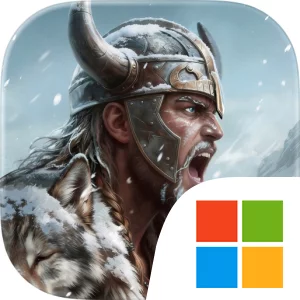
Play Viking Rise on Windows PC
Download the official Viking Rise Windows PC client and learn how to install and play the game on PC, with controls, system requirements, and practical tips.

Download Viking Rise Official Windows PC Client
Official Windows PC client provided by LDPlayer.
About the Official Viking Rise PC Client
Developer: IGG SINGAPORE PTE. LTD.
The game’s real-time systems make planning and timing central to every campaign. When a battle begins, you survey the battlefield and issue commands as events unfold rather than relying entirely on pre-set outcomes. Global multiplayer adds a diplomatic layer, since forming alliances can let players protect one another and coordinate attacks, while competing rulers challenge your claim to Midgard. Naval combat expands the strategic map beyond the coastline: you can sail through unknown waters to seize territory, ambush enemies, plunder resources, move toward a more favorable position, or retreat when a fight is going badly. Exploration also has rewards and risks of its own. Send Heroes to hunt raging beasts from Norse mythology, search mysterious ruins and caves for treasure, and pursue the ancient dragon whose taming grants a powerful combat boost. On PC, a larger display makes it easier to read the world map at a glance, follow territory boundaries, assess routes across land and water, and keep battlefield information visible while you choose commands in real time. Keyboard-and-mouse controls are particularly useful when switching between settlement management, map navigation, Hero selection, and combat orders, or when repeatedly handling the detailed actions involved in expanding a Tribe. A mouse also gives you more precise control when selecting locations, examining nearby threats, and comparing the strategic value of a trading center, resource-focused settlement, or fortress. With seasonal changes and the Nordic landscape providing the setting, Viking Rise brings its exploration, alliance building, naval maneuvers, Hero-led battles, and territory management together into a persistent struggle for fame, power, and control of Midgard.
Screenshots
How to Download and Install the Official Viking Rise PC Client
- Download and install the official Windows client distributed by LDPlayer.
- Open the app and sign in with your Google Play account.
- Search for Viking Rise in the app store.
- Install the game and finish the first-launch download.
- Use the same game login if account sync is available.
Why Play Viking Rise on PC?
Menus, maps, resources, and combat details are easier to read on a desktop display.
Keyboard and mouse input makes repeated actions and long sessions more comfortable.
Desktop play avoids phone battery drain during longer farming sessions.
Keep guides, codes, and notes open alongside the game on PC.
Controls and Performance
These three settings solve most common issues when playing on PC.
Map navigation, skill use, and repeated resource actions first.
Lower resolution or graphics quality if crowded scenes lose frames.
Link your account before switching devices so progress can be restored safely.
Viking Rise Official PC Client FAQ
Can I play Viking Rise on PC?
Yes. Download the official Windows PC client distributed by LDPlayer and play with a larger screen, keyboard, and mouse controls.
Is Viking Rise better on PC than mobile?
Playing on PC can make longer sessions, detailed menus, and resource management more comfortable, while mobile is still convenient for quick check-ins.
Will my Viking Rise progress sync on PC?
Progress depends on the sign-in options supported by the game. Use the same linked Google, Facebook, Apple, or game account on both devices.
Why does Viking Rise lag on PC?
Lag can be caused by limited RAM, demanding graphics settings, outdated client files, or background apps. Lower the graphics settings and keep the PC client up to date.
DOWNLOAD STARTED
Your download is starting
Check your browser Downloads if it does not appear.
Official PC client for Windows, distributed by LDPlayer.
Download again