
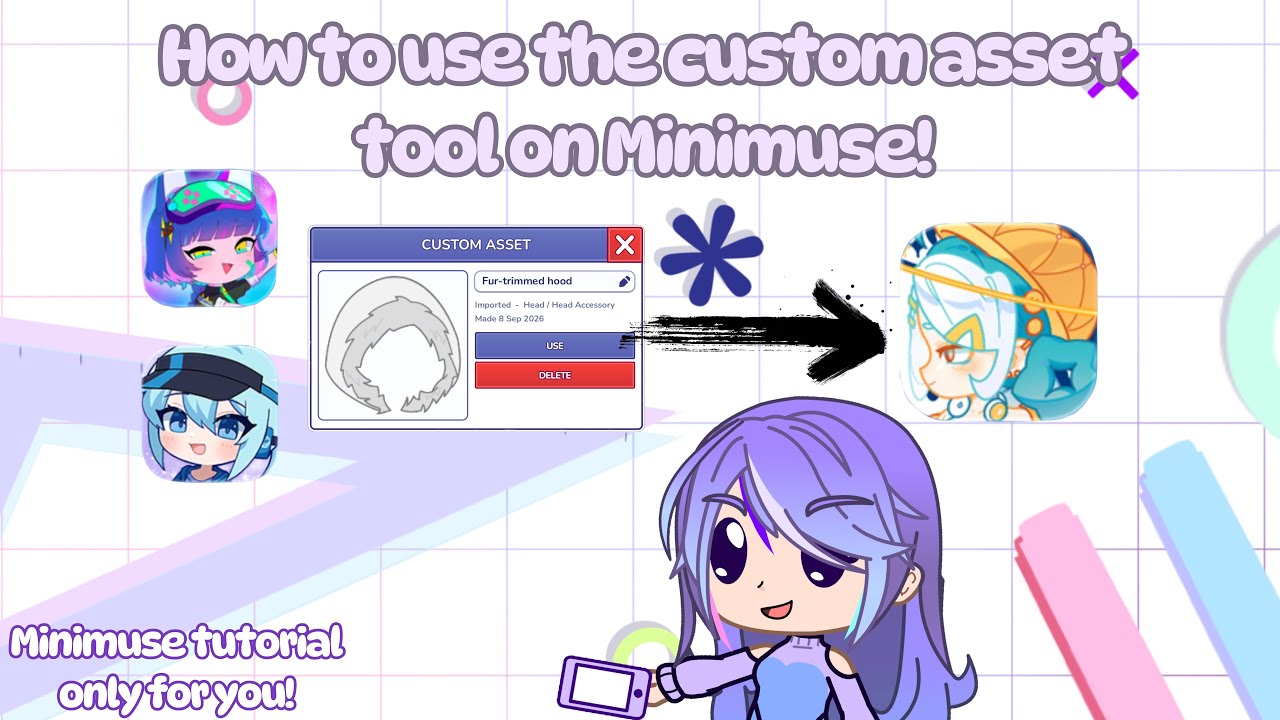
To import custom graphics into MiniMuses, you must manually replace default image files inside the game's local directory. MiniMuses does not feature an in-game import menu, so adding custom clothing or accessories requires swapping out existing PNG files on your computer.
Step-by-Step Asset Import Process
Follow these steps to replace standard game files with your custom artwork:
- Back up your original game files: Locate your primary MiniMuses installation folder on your computer and find the subfolder labeled
Assets(orData). Copy this entire folder to a safe location outside the game directory. This backup allows you to restore default items if a custom image fails to render. - Prepare your custom PNG image: Save your graphic as a PNG file with a transparent background (using an active alpha channel). Check the pixel dimensions of the original game graphic you plan to replace, and match your custom file to those exact dimensions to prevent stretching or floating alignment issues.
- Rename the custom file: Locate the specific developer asset you want to replace (for example,
Dress_01.png). Rename your custom PNG file to match that target filename exactly, preserving all capitalization and symbols. - Overwrite the game file: Move your renamed custom PNG into the corresponding folder inside the
Assetsdirectory and accept the prompt to overwrite the original file. - Relaunch MiniMuses: Close MiniMuses if it is currently running, then restart the application. The game engine loads graphics during startup, so file changes will not appear until the program reloads.
Customization Limits and Troubleshooting
File swapping alters existing visual slots rather than creating new options in the user interface. Because you are overwriting existing assets, the original item will not be available in the game menu unless you restore it from your saved backup folder.
If your character graphic appears distorted, misaligned, or invisible after an import, review these standard requirements:
- File Format: Confirm the custom image is saved as a 24-bit or 32-bit PNG file.
- Background Transparency: Ensure the background is fully transparent rather than solid white or black, which renders as a blocky overlay on the character model.
- Exact Filename Matching: Check for missing underscores, typos, or incorrect capitalization in the filename.
- Application Restart: Always restart MiniMuses after replacing files in the installation folder to force the game to load the updated graphics.
Free MiniMuses Codes
Current active codes and how to redeem them.

Sarah Williams
Sarah specializes in RPG and collection games, explaining team building, character growth, and beginner-friendly ways to avoid expensive early mistakes.
COMMUNITY
Player Comments
158 players commented on this guide.
The tips are practical and easy to follow.
This guide answered the exact question I had.
Good guide for MiniMuses players. The strategy part was useful.
This saved me time in the early game.