
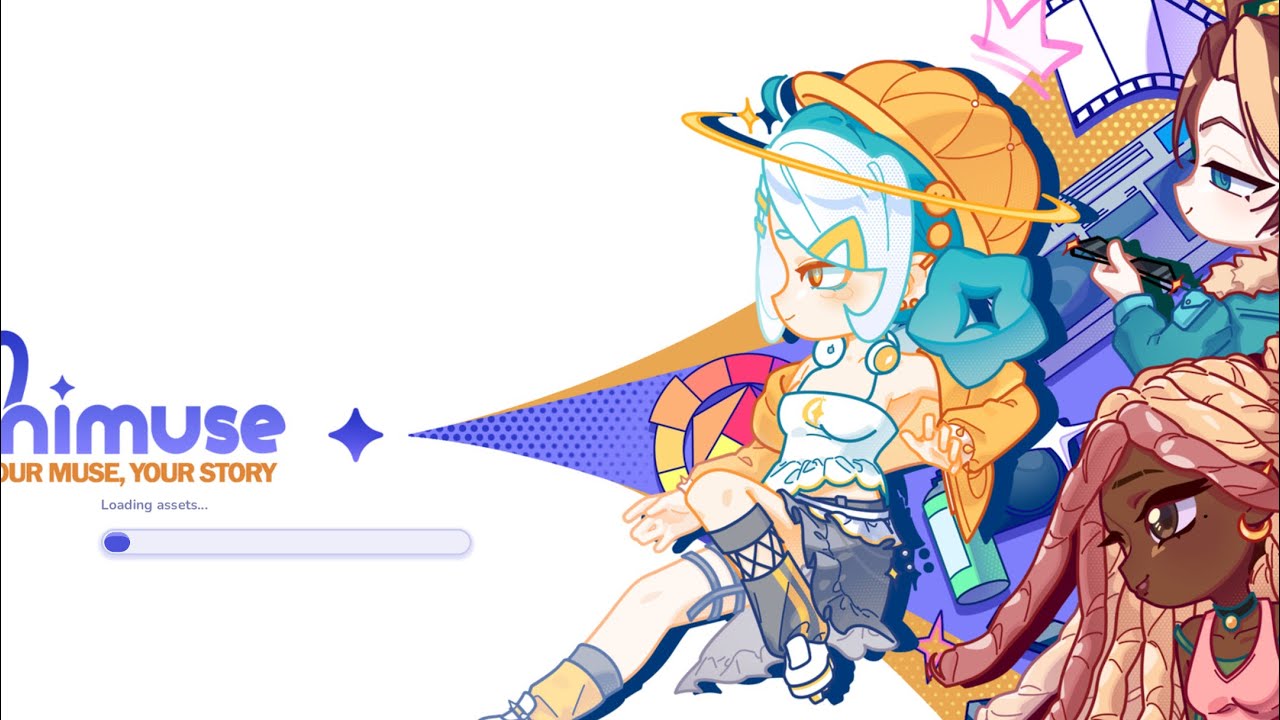
To set up a scene in MiniMuses Studio Mode, place background elements at the bottom of your layer stack and position active characters and props near the top. MiniMuses is in a pre-launch state with limited regional availability on Android and PC, meaning manual layer management is required to resolve asset clipping and visual stacking issues.
Setting Up Studio Mode Scenes
Studio Mode functions as a multi-character canvas, allowing you to place multiple models in a single environment.
- Position Models: Drag characters across the workspace using the grid layout to establish spatial relationships.
- Establish Depth: Place props near the bottom edge of the frame to make them appear closer to the camera lens, creating a sense of visual depth in a 2D space.
- Match Contrast: Pair bright, saturated characters with darker or monochromatic backdrops so character outlines remain visible.
Fixing Asset Layering Conflicts
When multiple decorative items or characters overlap out of order, use the dedicated layer management panel to restructure the visual hierarchy.
| Asset Type | Layer Panel Priority | Purpose |
|---|---|---|
| Background Backdrops | Lowest (Bottom of Stack) | Forms the base visual environment |
| Environmental Props | Middle Stack | Serves as anchor points for character interaction |
| Character Sprites | Top Stack | Keeps models visible without prop overlap |
If an item remains misaligned after reordering the stack, delete the asset from the canvas and re-add it. This resets its default placement priority. Keeping the total number of active props low also prevents performance slowdowns on lower-spec mobile hardware.
Polishing Poses and Preparing Exports
After setting up your layout, refine individual model details to finish the scene:
- Adjust Model Angles: Use pose sliders to adjust head tilts and limb placement so characters align naturally with nearby props or adjacent models.
- Match Visual Tone: Toggle facial expression states to complement the lighting and mood of your selected background.
- Clean the Display: Toggle off edit buttons and menu borders in the studio menu to clear the interface.
- Frame the Shot: Frame your composition horizontally or vertically within the studio camera view before capturing high-resolution screenshots to avoid cropping essential details later.

Free MiniMuses Codes
Current active codes and how to redeem them.

James Brown
James focuses on Android gaming on PC, emulator setup, controls, performance tuning, and practical troubleshooting for longer play sessions.
COMMUNITY
Player Comments
150 players commented on this guide.
I tried this today and it worked better than my old setup.
The explanation is clear, especially for beginners.
This guide answered the exact question I had.
This saved me time in the early game.