
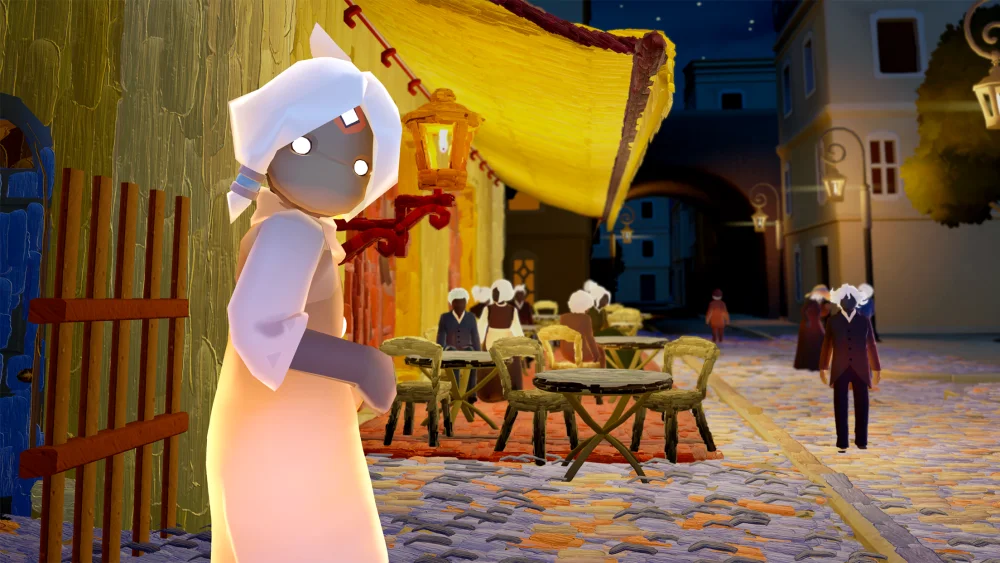
To run Canvas and LibTSM for Sky: Children of the Light, install the standalone Canvas application package (APK) on an Android device, launch it once to generate system directories, and move the libTSM.so library file directly into the application's data folder.
Canvas operates as an isolated sandbox client that functions separately from the retail Google Play Store version. It allows you to test cosmetics, explore realm boundaries, and sample instruments offline without spending in-game currency or affecting live server data.
Device Requirements and Prerequisites
Before handling installation files, ensure your Android device meets the following setup requirements:
- Available Storage: Free at least 4 to 6 GB of internal space to accommodate the installation package and unpacked game assets.
- Third-Party File Manager: Install a specialized file manager such as ZArchiver or MiXplorer. Default system file explorers on modern Android versions often restrict access to nested app folders.
- Unknown Sources: Open your device's security or app settings and permit your browser and chosen file manager to install applications from external sources.
- Version Matching: Ensure the LibTSM library build precisely matches the Canvas APK version. Mismatched files cause the app to crash on launch.
How to Install the Canvas Client
Canvas uses an independent package structure, allowing it to coexist with the retail game without overwriting standard save data.
- Locate the downloaded Canvas APK in your file manager.
- Tap the file, accept any unknown package security warnings, and complete the installation.
- Open Canvas and allow it to load to the initial screen or permission prompt. Grant any requested local storage permissions.
- Exit the game completely and remove Canvas from your device's recent apps switcher to stop all active background processes. This initial run creates the required app folder structure in your internal storage.
How to Inject the LibTSM Mod Library
The LibTSM file contains the scripts and graphical interface necessary to activate the sandbox mod menu. Canvas runs as an unmodified client until this file is placed.
| Step | Action | Path or Target |
|---|---|---|
| 1. Extract | Unpack the archive if LibTSM is zipped | Download folder |
| 2. Copy | Copy the extracted core library (libTSM.so) | File manager clipboard |
| 3. Navigate | Locate the Canvas app directory | Android/data/[Canvas Package Name]/files/ |
| 4. Paste | Place the library file into the folder | App internal files directory |
| 5. Relaunch | Open Canvas to load the interface | On-screen floating menu |
After copying libTSM.so into the destination folder, launch Canvas. If the injection was successful, an on-screen overlay button or menu banner will appear, giving you access to cosmetic toggles, flight physics adjustments, and visual options.
Safety Guidelines and Sandbox Rules
Canvas functions strictly within a localized sandbox environment and does not connect to live servers:
- Never Use Official Account Credentials: Do not enter login details for accounts linked to Google, Apple, Nintendo, or PlayStation Network. Connecting to modified clients with official account credentials risks permanent account bans under anti-tampering rules.
- No Progression Transfer: Spirits, Winged Light, seasonal items, and cosmetics tested within Canvas remain isolated to that client. Nothing syncs to the retail version of Sky: Children of the Light.
- Obsolete Scripts: Community mod menus and libraries are frequently rendered obsolete by client updates. If the overlay fails to appear after a client update, check that you have obtained a renewed LibTSM build configured for that specific Canvas version.
Free Sky: Children of the Light Codes
Current active codes and how to redeem them.

Sarah Williams
Sarah specializes in RPG and collection games, explaining team building, character growth, and beginner-friendly ways to avoid expensive early mistakes.
COMMUNITY
Player Comments
27 players commented on this guide.
The explanation is clear, especially for beginners.
The tips are practical and easy to follow.
Nice guide. I am checking the other Sky: Children of the Light articles next.
I tried this today and it worked better than my old setup.