
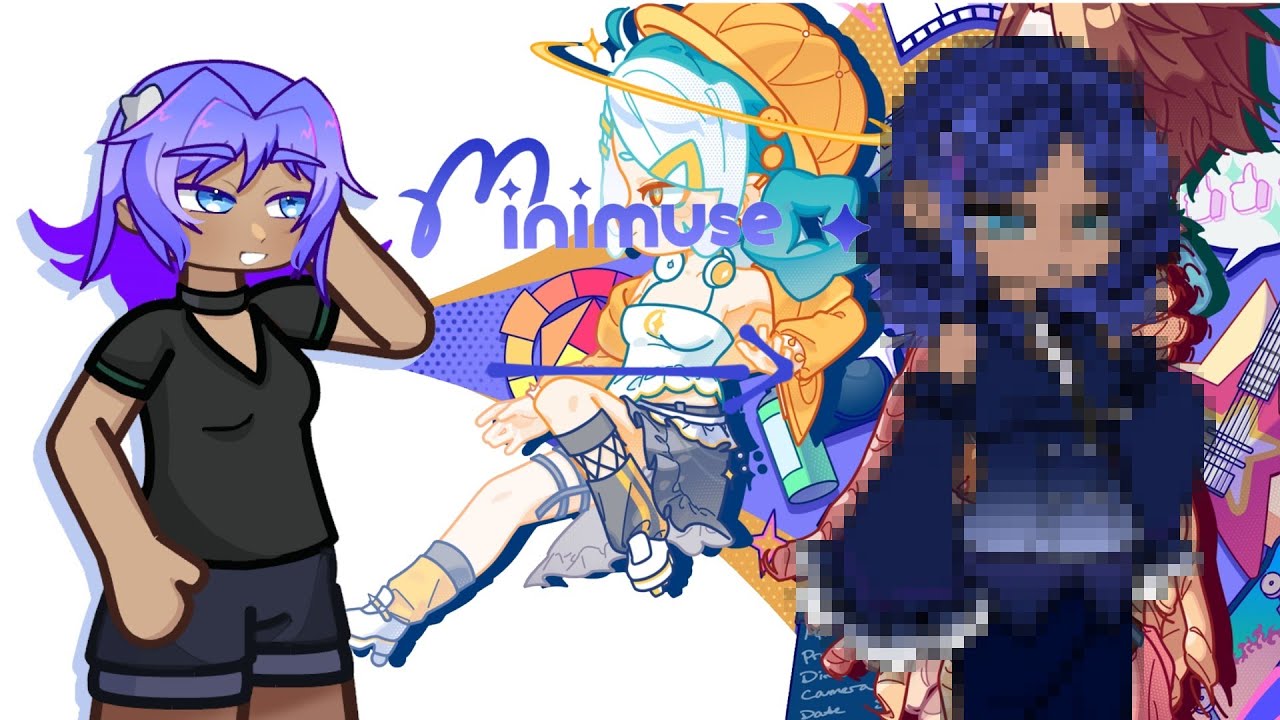
To build a custom original character (OC) in MiniMuses, select a base preset template first to fix head-to-body proportions, then refine hair layers, facial sliders, and color palettes. Working from a structured foundation prevents structural proportion issues while allowing full control over cosmetic details.
Setting Up Base Models and Item Compatibility
Before adjusting detailed sliders, pick a default base model that fits your intended height and build. Base presets automatically calibrate head-to-body ratios and limb lengths, saving time over manual adjustments.
- Check item availability: Open the Category tab to verify which clothing items and accessories fit your selected base type. Certain shop items are locked to specific body frames.
- Switching presets: You can switch base presets mid-design without losing saved color data, making it easy to test different builds without recoloring your palette.
Adjusting Colors and Matching Palettes
Rather than relying strictly on default color swatches, use the editor's color picker and RGB sliders for exact color control.
- Set base tones: Use the RGB sliders to adjust skin tone, hair highlights, and primary clothing shades.
- Match secondary items: Sample exact color shades from clothing pieces and apply them to smaller accessories such as hair clips, scarves, or eyewear. Applying consistent color values across accessories prevents visual clutter and grounds the overall design.
Layering Hair and Resolving Accessory Clipping
MiniMuses uses a multi-tiered hair and accessory system to create distinct silhouettes without forcing single static hair pieces.
- Hair layering: Modify the front, middle, and back hair sections independently. Stacking these three layers allows you to craft complex hairstyles beyond the default menu choices.
- Accessory placement: Adjust the positioning and tilt toggles for items like hats or glasses so they sit naturally on the head model.
- Fixing clipping: If an accessory clips through hair or facial features, reduce its size slider by 5% to 10%. A small reduction usually clears visual glitches without ruining the item's intended aesthetic.
Adjusting Facial Sliders and Expressions
The facial creation menu features fine-grained controls for eyebrow tilt, mouth placement, blush intensity, and eye positioning.
To alter the character's general aesthetic:
- Narrow eye spacing: Moving the eyes closer together creates a more youthful or chibi-style expression.
- Wider eye spacing: Increasing eye distance produces a more mature appearance.
- Feature order: Adjust the eyes first, then align the mouth relative to the jawline. If a combination creates awkward proportions, use the reset button to return to baseline settings before trying again.
Checking Previews and Exporting Clean Images
Before saving or exporting your character:
- Rotate in preview mode: View your character from multiple angles while in preview mode to spot floating accessories or clipping issues that only surface during movement.
- Save progress: Save your design to an open character slot as soon as major structural milestones are met.
- Optimize export settings: Position your character in a well-lit area of the editor screen and set anti-aliasing to maximum in your graphics menu. Higher render settings ensure full clarity when taking screenshots or exporting final artwork.
Free MiniMuses Codes
Current active codes and how to redeem them.

Sarah Williams
Sarah specializes in RPG and collection games, explaining team building, character growth, and beginner-friendly ways to avoid expensive early mistakes.
COMMUNITY
Player Comments
110 players commented on this guide.
The explanation is clear, especially for beginners.
This helped me understand heroes much better.
I tried this today and it worked better than my old setup.
Nice guide. I am checking the other MiniMuses articles next.